
📑 Table of Contents ▼
Specifically for the Apple TV 4K (3rd Generation) — Model MN893LL/A
If you’re new to Apple TV, the remote can feel confusing at first. This article covers:
- what each button does
- how to navigate
- common beginner questions
- troubleshooting tips
- how to fix the most common remote problems
Understanding the Siri Remote
The Apple TV Siri Remote controls:
- streaming apps
- menus
- playback
- volume
- voice commands
Unlike traditional cable remotes, this remote is designed more like a small touch controller.
Button Overview
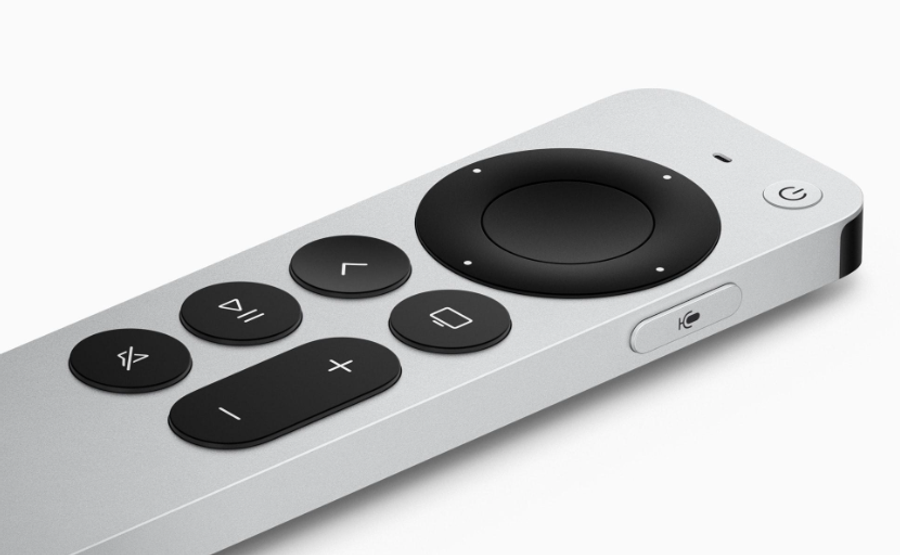
Circular Clickpad (Top Circle)
The large circle at the top is used for:
- moving around menus
- scrolling
- selecting apps
- fast forwarding
- rewinding
You can:
- swipe lightly
- or click the directional buttons
Press the CENTER button to select something.
Back Button (<)
Returns to the previous screen.
If you ever feel lost:
this is usually the safest button to press.
TV Button
Returns to the Apple TV home screen. Think of this as: the “main menu” button. Holding the TV button opens:
- Control Center
- sleep options
- audio settings
- user switching
Play/Pause Button
Starts or pauses:
- movies
- TV shows
- music
Volume Buttons
Controls your:
- TV volume
- soundbar volume
- receiver volume
Mute Button
Silences sound instantly.
Siri Button (Side Button)
Located on the RIGHT side of the remote.
Hold the button while speaking commands like:
- “Open Netflix”
- “Play Cubs game”
- “Turn subtitles off”
- “Skip ahead 2 minutes”
Release the button when finished speaking.
First Steps for Beginners
How to Open Apps
- Use the clickpad to move around
- Highlight an app
- Press the center button to open it
How to Return to the Main Screen
Press the TV button once.
This returns you to the Apple TV home screen.
How to Go Back
Press the Back button (<).
How to Pause Something
Press the Play/Pause button once.
Press it again to resume.
How to Fast Forward or Rewind
While watching:
- swipe LEFT or RIGHT on the clickpad
or - press LEFT or RIGHT buttons
Common Beginner Problems + Fixes
Problem: Subtitles Appeared
While watching:
- Swipe DOWN
- Open Subtitles
- Select Off
Some apps also control subtitles separately.
Problem: Remote Not Responding
Step 1 — Charge the Remote
This Siri Remote uses USB-C charging.
Low battery may cause:
- delayed clicks
- lag
- disconnects
- buttons not responding
Charge for at least 20–30 minutes.
Step 2 — Restart the Remote
Hold:
- TV button
- AND Volume Down
for about 5 seconds.
You may briefly see:
- “Remote disconnected”
- then “Remote connected”
This is normal.
Step 3 — Restart Apple TV
If the remote still behaves strangely:
- Unplug Apple TV power
- Wait 30 seconds
- Reconnect power
Problem: Volume Buttons Don’t Work
Sometimes the remote loses communication with the TV.
Go to:
Settings → Remotes and Devices → Volume Control
Select:
- Auto
or - Learn New Device
Problem: The Remote Is Lost
You can locate the remote using an iPhone.
On iPhone
- Open Control Center
- Tap Apple TV Remote
- Select your Apple TV
- Tap “Find”
Your iPhone will help guide you to the remote.
Helpful Siri Commands
Try saying:
- “Open YouTube TV”
- “Play music”
- “Turn subtitles on”
- “Skip ahead 30 seconds”
- “What did they say?”
Apple TV can automatically rewind and temporarily enable subtitles after asking:
“What did they say?”
Helpful Beginner Tip
Think of the Siri Remote like:
a small wireless mouse + TV remote combined together
The top clickpad is designed for:
- movement
- scrolling
- navigation
The TV button is your:
“safe home button”
Whenever confused:
just press the TV button once.
Still Need Help?
If you’re having trouble, please reach out to 📩 support@marshmallowstreaming.com - We’re happy to help!