
📑 Table of Contents ▼
For the Apple TV 4K (3rd Generation) Siri Remote
The Siri Remote included with the Apple TV 4K (3rd Generation) has a rechargeable battery built inside.
With normal use, the battery typically lasts for months at a time, but eventually it will need to be recharged. Apple TV will usually warn you automatically when the battery gets low.
This guide explains:
- how to check the battery level
- how to charge the remote
- how long charging takes
- what to do if the remote is not responding
How to Check the Battery Level
Step 1 — Open Settings
From the Apple TV home screen:
- open Settings
Step 2 — Open “Remotes and Devices”
Scroll down and select:
- Remotes and Devices
Step 3 — Select “Remote”
Under the “Remote” section:
- select Remote
You’ll now see:
- Battery Level percentage
- connection information
- remote details
Apple provides this exact process in their official support documentation.
What Battery Percentage Is Considered Low?
Generally:
- 100%–50% = good
- 50%–20% = still fine
- below 20% = recommended to charge soon
Apple TV will usually display a warning on screen when the battery gets low.
How to Charge the Siri Remote
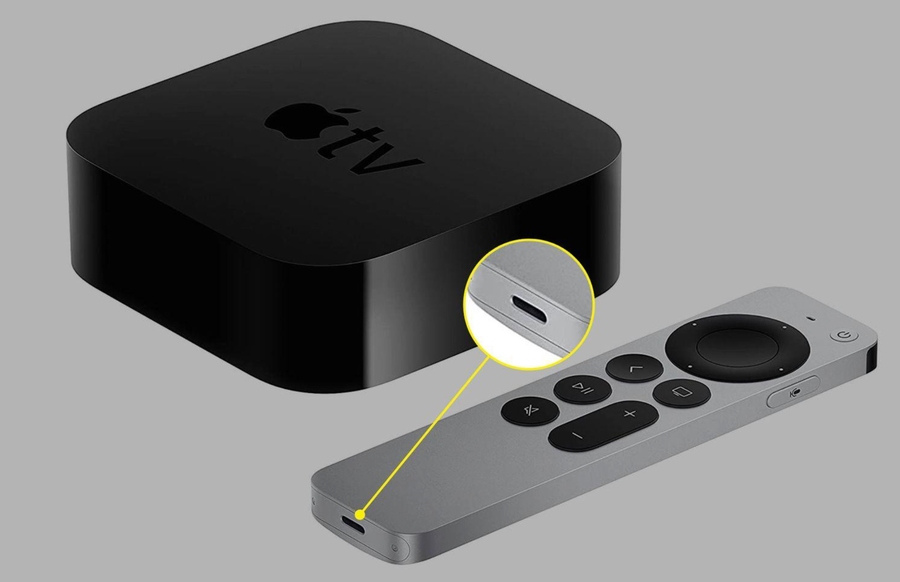
The Siri Remote for the Apple TV 4K (3rd Generation) uses USB-C charging.
To Charge the Remote
- Plug a USB-C cable into the bottom of the remote
- Connect the other end to:
- a USB wall charger
- computer
- USB charging port
Apple states the remote takes approximately 2.5–3 hours to fully charge.
Important: There Is No Charging Light
Unlike many remotes, the Siri Remote does NOT have:
- a blinking charging light
- LED battery indicator
To verify charging:
- return to:
Settings → Remotes and Devices → Remote - check whether the battery percentage increases
Can I Use the Remote While Charging?
Yes.
The Siri Remote continues working while plugged in and charging.
What If the Remote Is Completely Dead?
If the battery fully drains:
- the remote may temporarily disconnect
- buttons may stop responding
- the Apple TV may not detect it immediately
First Try This
Charge the remote for at least 20–30 minutes. Then test again.
How to Restart the Siri Remote
If the remote still does not respond after charging:
Press and Hold:
- TV button
- AND Volume Down
for about 5 seconds.
You may briefly see:
- “Remote disconnected”
- then “Remote connected”
This is normal.
How to Reconnect the Remote
If the remote still will not respond:
Hold:
- Back button (
<) - AND Volume Up
near the Apple TV box for about 5 seconds.
The remote should reconnect.
Signs Your Remote Battery May Be Low
Common symptoms include:
- delayed clicks
- laggy scrolling
- disconnecting randomly
- buttons occasionally not responding
- Siri button not working consistently
Charging the remote usually resolves these issues.
Helpful Tip
The Siri Remote battery lasts surprisingly long. Most customers only need to charge it a few times per year with normal use.
Still Need Help?
If your remote:
- will not charge
- will not reconnect
- or still behaves strangely after restarting
Please reach out to 📩 support@marshmallowstreaming.com - We’re happy to help!