Using your Apple TV remote.
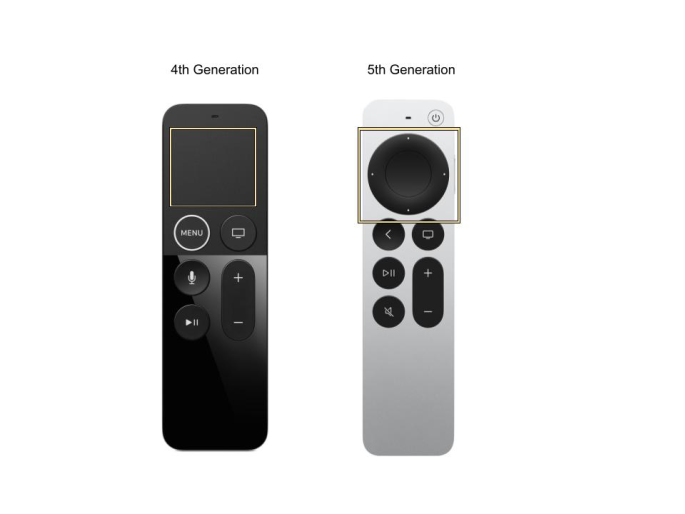
The top portion of your remote is a swipe pad. Swipe left, right, up or down to scroll. Click the pad once to select.
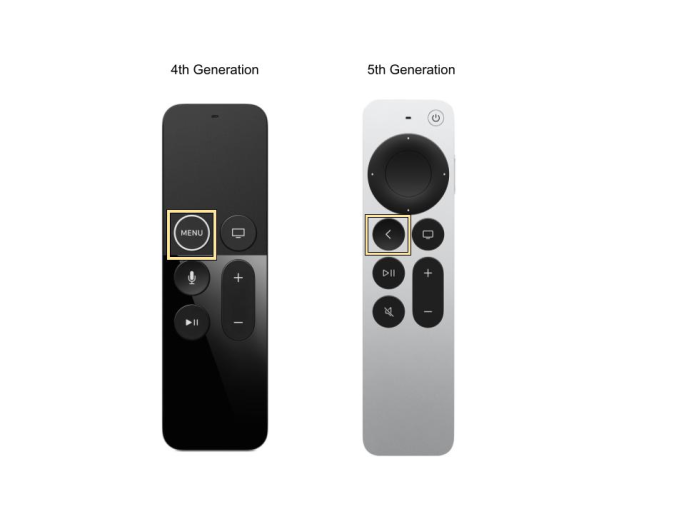
The Menu button will take you to the previous screen.
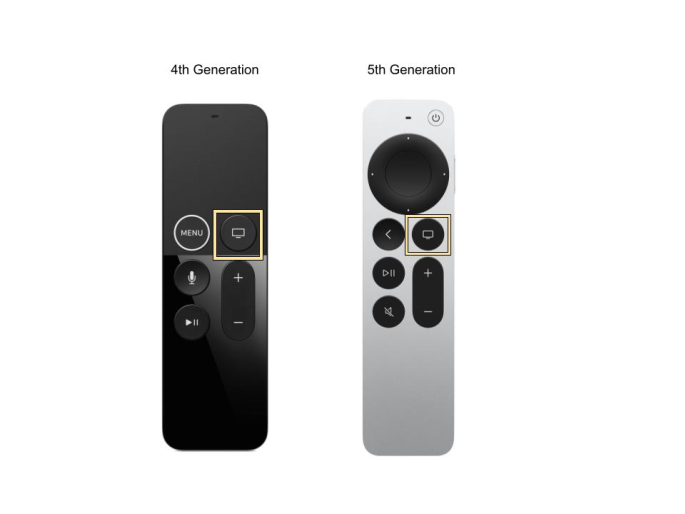
The screen button to the right of the Menu button will take you to the main entertainment screen where you can access your viewing library. This is different from the home screen that pops up when you access your Apple TV device.
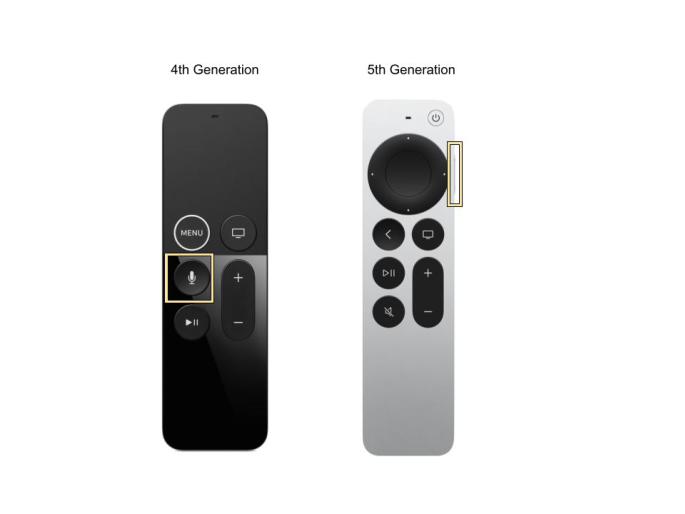
The microphone button can be used to access voice control. Hold the button and say your prompt (ex. A show title or actor’s name). Release the button to complete the request.
Using your Apple TV remote for playback controls
The top portion of your remote is a swipe pad. Swipe left, right, up or down to scroll. Click the pad once to select.
The Menu button will take you to the previous screen.
The screen button to the right of the Menu button will take you to the main entertainment screen where you can access your viewing library. This is different from the home screen that pops up when you access your Apple TV device.
The microphone button can be used to access voice control. Hold the button and say your prompt (ex. A show title or actor’s name). Release the button to complete the request.
Troubleshooting Apple TV remote
The top portion of your remote is a swipe pad. Swipe left, right, up or down to scroll. Click the pad once to select.
The Menu button will take you to the previous screen.
The screen button to the right of the Menu button will take you to the main entertainment screen where you can access your viewing library. This is different from the home screen that pops up when you access your Apple TV device.
The microphone button can be used to access voice control. Hold the button and say your prompt (ex. A show title or actor’s name). Release the button to complete the request.
Setting up and using your iPhone or iPad as an Apple TV remote
The top portion of your remote is a swipe pad. Swipe left, right, up or down to scroll. Click the pad once to select.
The Menu button will take you to the previous screen.
The screen button to the right of the Menu button will take you to the main entertainment screen where you can access your viewing library. This is different from the home screen that pops up when you access your Apple TV device.
The microphone button can be used to access voice control. Hold the button and say your prompt (ex. A show title or actor’s name). Release the button to complete the request.
Downloading new apps
The top portion of your remote is a swipe pad. Swipe left, right, up or down to scroll. Click the pad once to select.
The Menu button will take you to the previous screen.
The screen button to the right of the Menu button will take you to the main entertainment screen where you can access your viewing library. This is different from the home screen that pops up when you access your Apple TV device.
The microphone button can be used to access voice control. Hold the button and say your prompt (ex. A show title or actor’s name). Release the button to complete the request.
Moving apps on the home screen
The top portion of your remote is a swipe pad. Swipe left, right, up or down to scroll. Click the pad once to select.
The Menu button will take you to the previous screen.
The screen button to the right of the Menu button will take you to the main entertainment screen where you can access your viewing library. This is different from the home screen that pops up when you access your Apple TV device.
The microphone button can be used to access voice control. Hold the button and say your prompt (ex. A show title or actor’s name). Release the button to complete the request.
Closing out of running apps
The top portion of your remote is a swipe pad. Swipe left, right, up or down to scroll. Click the pad once to select.
The Menu button will take you to the previous screen.
The screen button to the right of the Menu button will take you to the main entertainment screen where you can access your viewing library. This is different from the home screen that pops up when you access your Apple TV device.
The microphone button can be used to access voice control. Hold the button and say your prompt (ex. A show title or actor’s name). Release the button to complete the request.
Deleting apps
The top portion of your remote is a swipe pad. Swipe left, right, up or down to scroll. Click the pad once to select.
The Menu button will take you to the previous screen.
The screen button to the right of the Menu button will take you to the main entertainment screen where you can access your viewing library. This is different from the home screen that pops up when you access your Apple TV device.
The microphone button can be used to access voice control. Hold the button and say your prompt (ex. A show title or actor’s name). Release the button to complete the request.
How to stream video via airplay
The top portion of your remote is a swipe pad. Swipe left, right, up or down to scroll. Click the pad once to select.
The Menu button will take you to the previous screen.
The screen button to the right of the Menu button will take you to the main entertainment screen where you can access your viewing library. This is different from the home screen that pops up when you access your Apple TV device.
The microphone button can be used to access voice control. Hold the button and say your prompt (ex. A show title or actor’s name). Release the button to complete the request.
How to connect or reconnect to your wireless network
The top portion of your remote is a swipe pad. Swipe left, right, up or down to scroll. Click the pad once to select.
The Menu button will take you to the previous screen.
The screen button to the right of the Menu button will take you to the main entertainment screen where you can access your viewing library. This is different from the home screen that pops up when you access your Apple TV device.
The microphone button can be used to access voice control. Hold the button and say your prompt (ex. A show title or actor’s name). Release the button to complete the request.